
On this page
A Kalshi API key is part of a signed authentication workflow, not a password pasted into every request. Keep the key ID, private key, environment and signing message distinct. This guide focuses on setup and diagnosing mistakes; the general Kalshi API guide covers market data and rate limits.
Documentation checked October 6, 2026. Use the signing-message builder to inspect public request details. It has no credential fields and does not sign or send requests.
Get the key ID and private key
Kalshi's official authentication quick start directs users to Account & security → API Keys in the selected account environment. Create a key and save both its displayed ID and downloaded private PEM file. The private key cannot be retrieved after that creation page closes.
Store the file outside your project repository. Give your client a path to the file rather than embedding its contents in source code. Avoid screenshots or public debugging output containing credentials. A key ID and a private PEM serve different jobs: confusing them will not produce a valid signature.
Choose demo or production before connecting
The official environment reference lists separate endpoints and credentials. Demo keys work with demo endpoints; production keys work with production endpoints.
| Environment | Recommended REST base URL |
|---|---|
| Demo | https://external-api.demo.kalshi.co/trade-api/v2 |
| Production | https://external-api.kalshi.com/trade-api/v2 |
Keep these settings together in your client configuration. An environment name written in a comment does not change the host actually used by the request. Print only non-secret configuration while debugging, such as the selected environment and endpoint path.
Understand the three authentication headers
KALSHI-ACCESS-KEY: key ID.KALSHI-ACCESS-TIMESTAMP: the request's millisecond timestamp.KALSHI-ACCESS-SIGNATURE: base64-encoded cryptographic signature.
The authentication guide documents RSA-PSS/SHA-256 for RSA keys and direct signing for Ed25519 keys. Determine the algorithm from the parsed key type. A PEM header alone does not establish which algorithm your client should use.
Build the URL once and sign its full path
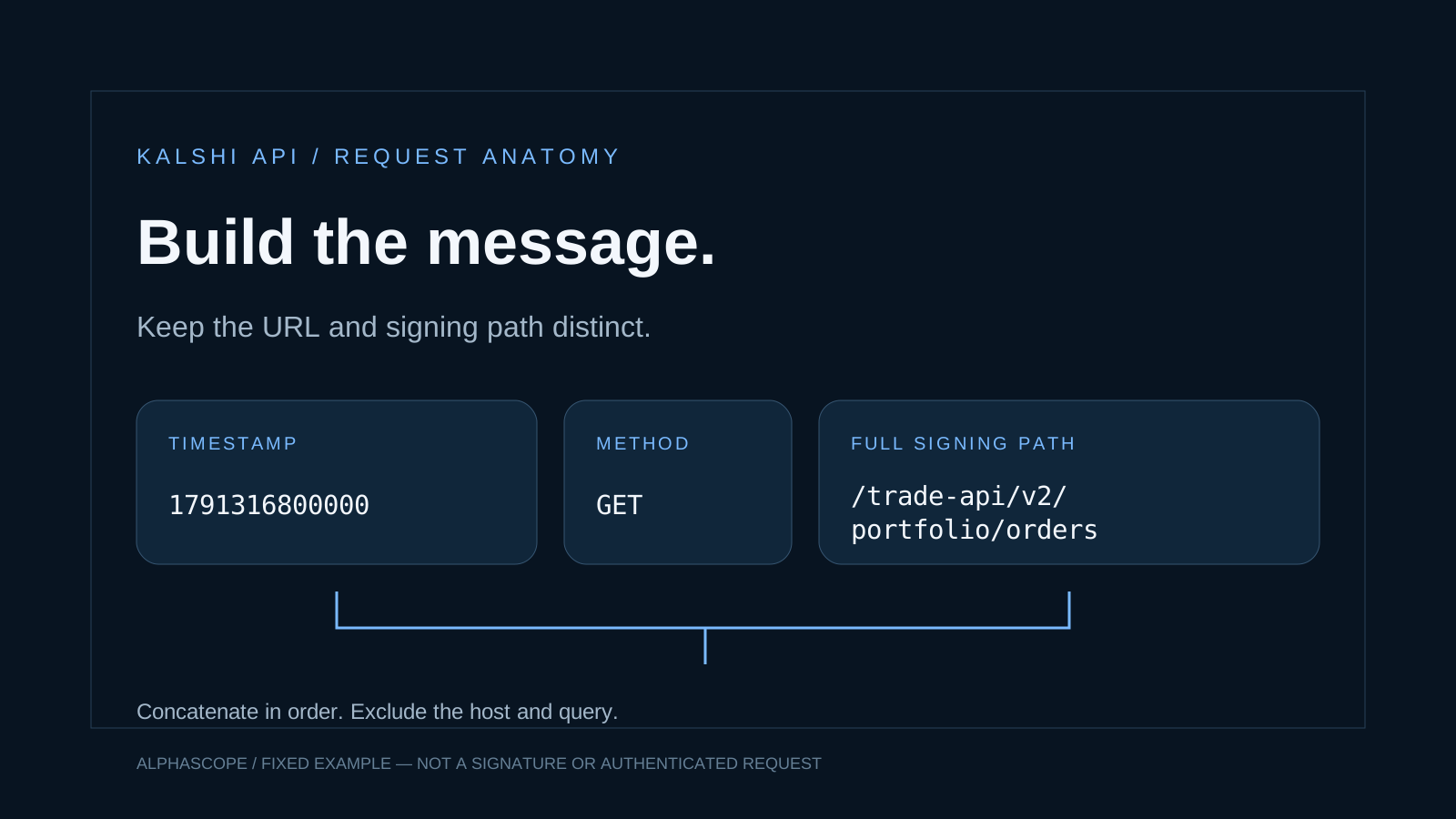
Suppose your endpoint is /portfolio/orders?limit=5. Combining it with the demo base produces a request URL ending in /trade-api/v2/portfolio/orders?limit=5. The signed path is /trade-api/v2/portfolio/orders: it keeps the API prefix and excludes the query and hostname.
If your base already contains /trade-api/v2, adding that prefix again creates a different, incorrect URL. Conversely, signing only /portfolio/orders leaves out part of the actual request path. Inspect the completed URL before constructing the signing text.
The message builder accepts a relative endpoint or a full Predictions API path. It shows the final request URL, the query-free signing path and the concatenated message. The timestamp defaults to a fixed example, so it is useful for comparing two client implementations; it is not ready to reuse indefinitely in requests.
Debug one difference at a time
| Check | Useful comparison |
|---|---|
| Environment | Does the key belong to the environment named by the actual host? |
| URL prefix | Is the API prefix present exactly once? |
| Signing path | Does it match the completed URL's path, without its query? |
| Timestamp | Does the message use the same millisecond value as the header? |
| HTTP method | Does the uppercase method match the request you send? |
| Key loading | Was the correct file parsed successfully using its actual algorithm? |
Do not change the host, timestamp, key file and method simultaneously and then guess which edit helped. Start with one request and preserve the non-secret details needed to reproduce its message. A successful local format check still does not prove that an account is authorized at the endpoint.
Validate locally before testing an account
A useful offline test generates disposable keys, signs a fixed message and verifies the resulting signature with the matching public key. Changing the message afterward should make verification fail. That tests your cryptographic implementation without using any account credentials.
For this guide's companion helper, offline checks cover both RSA and Ed25519, query exclusion, environment URL differences, duplicated prefixes and timestamp format. These checks are not an authenticated Kalshi account test and do not demonstrate order placement.
Next: data collection and error handling
Once setup is clear, keep your data collector narrow: handle empty responses, pagination, timeouts and rate limits, and preserve timestamps and exact market identifiers. The API overview explains those concerns; the Python guide covers a language-specific workflow.
Alphascope supports prediction-market research. This setup guide and message builder help inspect a client configuration; they do not create credentials or connect to your account.